You can not select more than 25 topics
Topics must start with a letter or number, can include dashes ('-') and can be up to 35 characters long.
1.2 KiB
1.2 KiB
How to schedule a script in Synology Task Scheduler
To schedule a script to run on your Synology at boot-up or shut-down follow these steps:
Note: You can setup a schedule task and leave it disabled, so it only runs when you select the task in the Task Scheduler and click on the Run button.
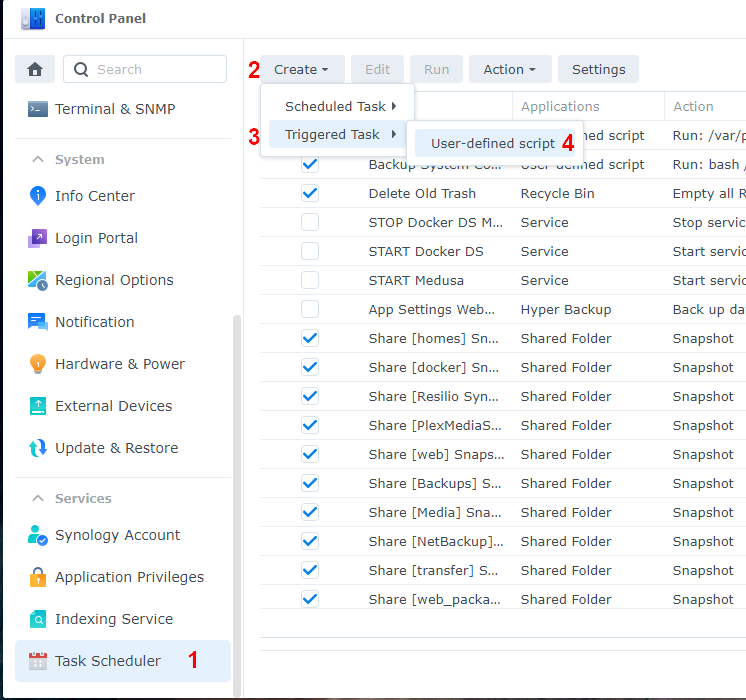
- Go to Control Panel > Task Scheduler > click Create > and select Triggered Task.
- Select User-defined script.
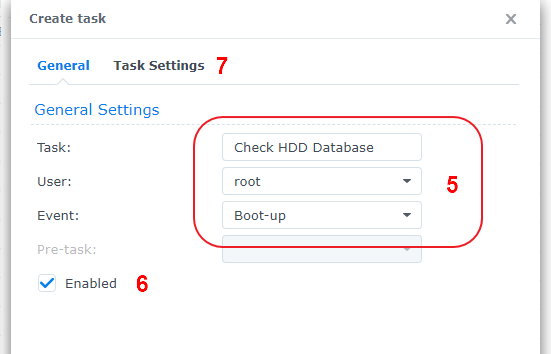
- Enter a task name.
- Select root as the user (The script needs to run as root).
- Select Boot-up as the event that triggers the task.
- Leave Enable ticked.
- Click Task Settings.
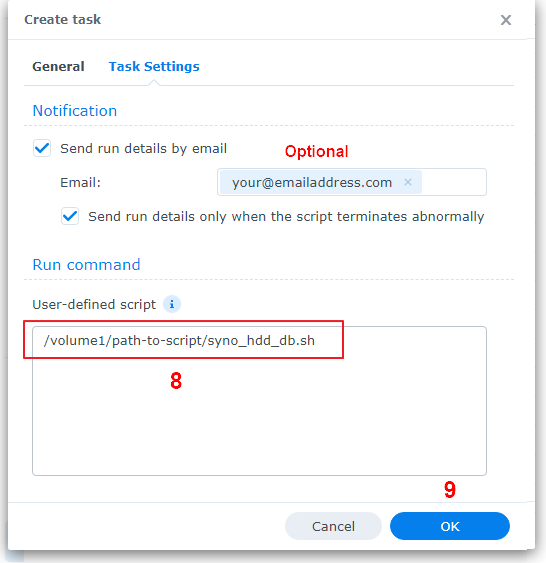
- Optionally you can tick Send run details by email and Send run details only when the script terminates abnormally then enter your email address.
- In the box under User-defined script type the path to the script.
- e.g. If you saved the script to a shared folder on volume1 called "scripts" you'd type: /volume1/scripts/syno_hdd_db.sh
- Click OK to save the settings.
Here's some screenshots showing what needs to be set: