
 007revad
a7c0b73875
007revad
a7c0b73875
|
3 years ago | |
|---|---|---|
| images | 4 years ago | |
| README.md | 3 years ago | |
| drive_info.sh | 3 years ago | |
| how_to_schedule.md | 4 years ago | |
| syno_hdd_db.sh | 3 years ago | |
README.md
Synology HDD db


Description
Add your HDD, SSD, SAS and NVMe drives to your Synology's compatible drive database.
The script works in DSM 7 and DSM 6.
What the script does:
- Gets the Synology NAS model and DSM version (so it knows which db files to edit).
- Gets a list of the HDD, SSD, SAS and NVMe drives installed in your Synology NAS.
- Gets each drive's model number and firmware version.
- Backs up the database file if there is no backup already.
- Checks if each drive is already in the Synology's compatible-drive database.
- Adds any missing drives to the Synology's compatible-drive database.
- Prevents DSM auto updating the drive database.
- Optionally disable DSM's "support_disk_compatibility".
- Reminds you that you may need to reboot the Synology after running the script.
Planned updates:
- Detect any connected expansion units and get the model(s) and edit the correct expansion unit db files.
- Or add support for users to specify their expansion unit model(s) as arguments.
- Or maybe use the shotgun approach and update all expansion unit db files.
- Add support for M.2 SATA and NVMe drives on a Synology PCIe card like the M2D17.
When to run the script
You would need to re-run the script after a DSM update. If you have DSM set to auto update the best option is to run the script every time the Synology boots, and the best way to do that is to setup a scheduled task to run the the script at boot-up.
Note: After you first run the script you may need to reboot the Synology to see the effect of the changes.
Options when running the script
There are 2 optional flags you can use when running the script:
- -showedits or -s to show you the changes it made to the Synology's compatible-drive database.
- -force or -f to disable "support_disk_compatibility". This should be needed if any of your drives weren't detected.
- If you run the script without -force or -f it will re-eanble "support_disk_compatibility".
Scheduling the script in Synology's Task Scheduler
See How to schedule a script in Synology Task Manager
Running the script via SSH
You run the script in a shell with sudo or as root.
sudo /path-to-script/syno_hdd_db.sh
Note: Replace /path-to-script/ with the actual path to the script on your Synology.
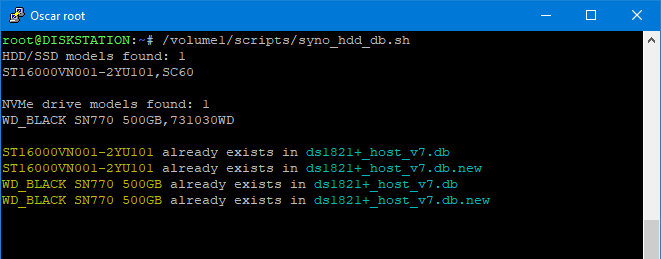
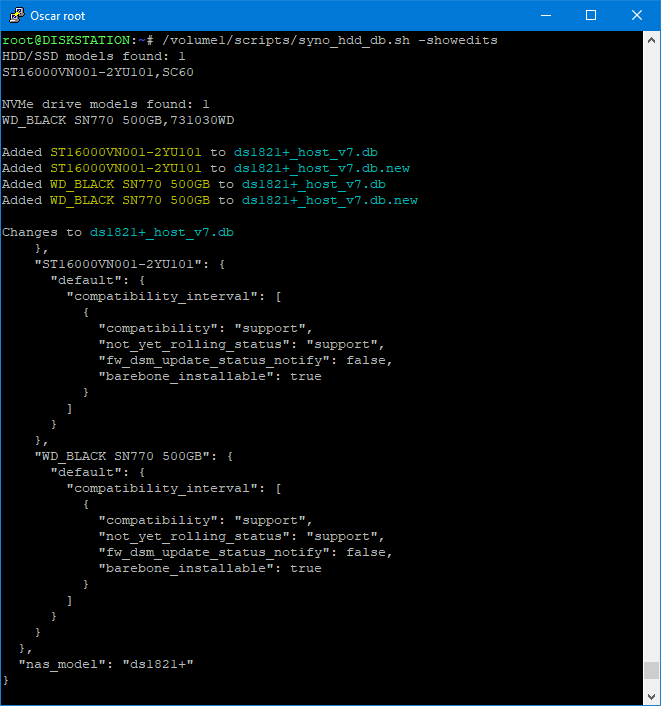
If you run the script with the -showedits flag it will show you the changes it made to the Synology's compatible-drive database. Obviously this is only useful if you run the script in a shell.
sudo /path-to-script/syno_hdd_db.sh -showedits
Note: Replace /path-to-script/ with the actual path to the script on your Synology.
Credits
- The idea for this script came from a comment made by Empyrealist on the Synology subreddit.
- Thanks for the assistance from Alex_of_Chaos on the Synology subreddit.